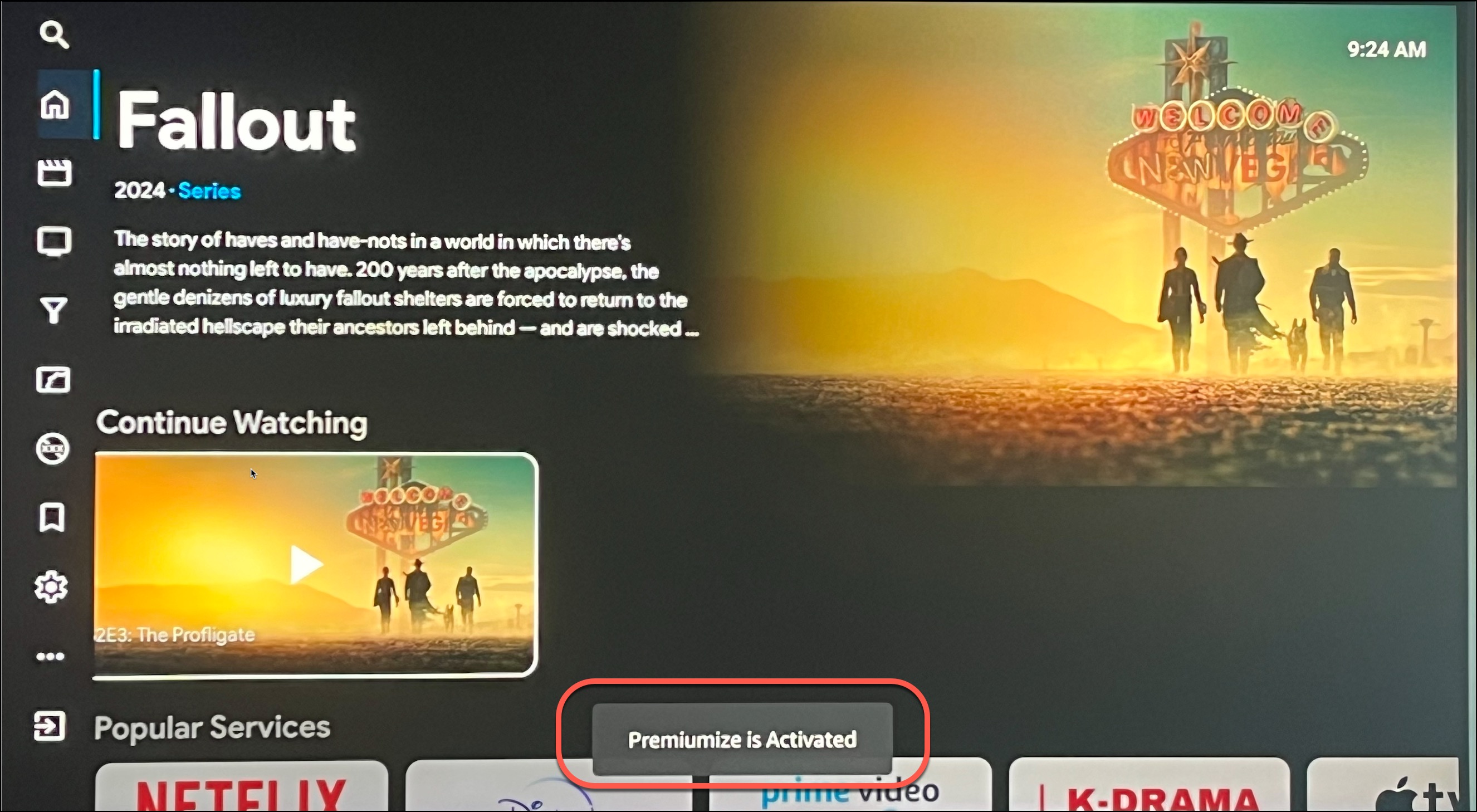
If you're not receiving Premiumized links in HawkVision follow these steps to troubleshoot the issue.
On the left hand menu scroll down to the bottom and click on "Exit", then confirm you really want to close the App. Then reopen the app and look to see if it says "Premiumize is Activated" at the bottom. If it does click on a movie/show to see if the Premiumized links are there.
If the Premiumized links do not appear after exiting and opening, navigate to Settings on your device > apps or applications > manage applications > click on the HawkVision app > then click on "Clear data". This will wipe your username and password and reset the app. Then click on launch application and login with your username and password, don't guess, make sure to use the Helpers we provided.
When you log back into the HawkVision app you should see "Premiumize is Activated" at the bottom and should be good to go. If the Premiumized links do not appear again, then EXIT out of the app and then launch it again. Continue this process until you see "Premiumize is Activated" at the bottom when you launch the app and see the yellow Premiumized links when you click on a movie / tv series.
If this doesn't work then uninstall and reinstall the HawkVision app by going to Downloader and enter the shortcode 9549988.
Disclaimer: These apps are provided FREE of charge as optional bonus apps available to HawkTV subscribers. Access to these bonus apps is available only while an active subscription is maintained and will end if the subscription is canceled or terminated. The sources and links displayed are obtained from third-party services and are not hosted, controlled, or maintained by us. We do not guarantee the availability, accuracy, or functionality of any links or the content they may lead to. By accessing or using these apps and links, you acknowledge that we are not responsible or liable for any content, availability issues, or damages that may result from their use. All use is at your own discretion and risk.