Android HawkSuite Install Instructions
Downloader Install Short codes:
- HawkTV: 2620853 (LiveTV App)
- HawkVision: 4658708 (Movies / TV Series App - (*ONLY use the yellow 'Premiumized' links)
- HawkCinema: 9610549 (Movies / TV Series App - (*DO NOT Click the "Download" button on links, ONLY click "Watch")
Android (Google Devices) HawkSuite Install Download & Install Instructions:
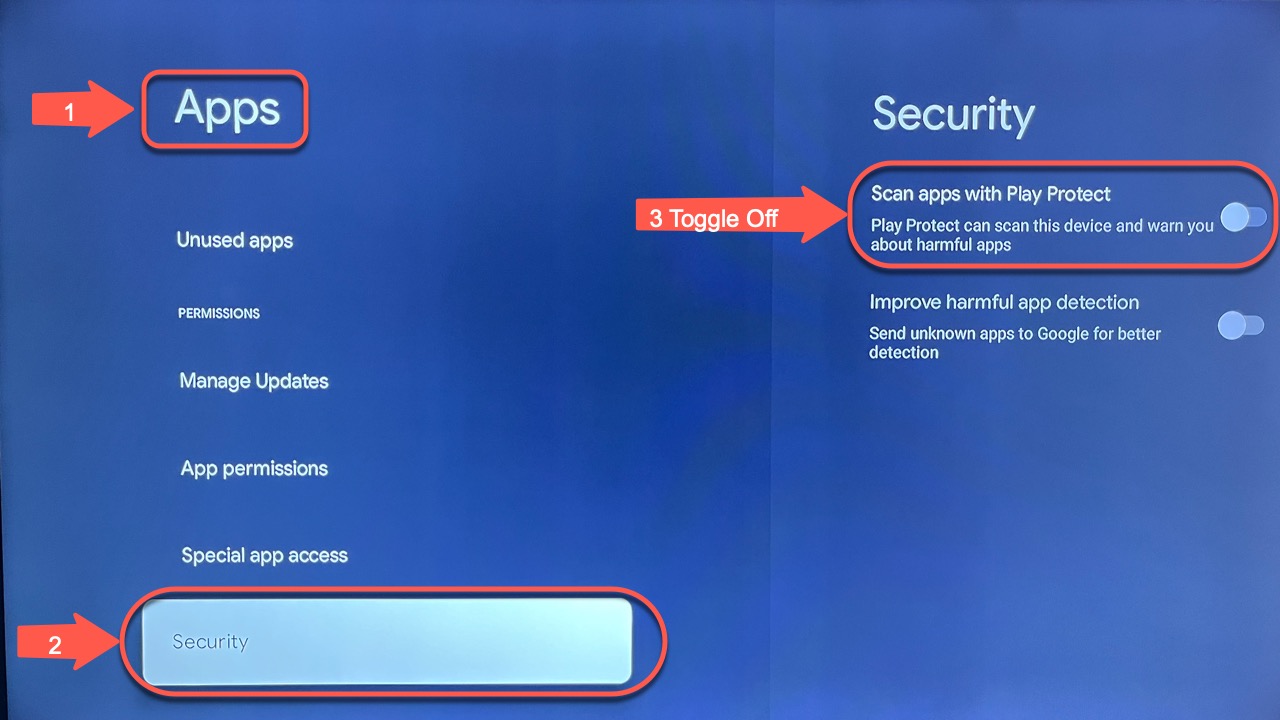
1.) Turn off Google Play Protect. Go to Settings > Apps > Security, then over to "Scan apps with Play Protect" and toggle that button OFF. (This step is very important because Google will remove the apps off your device if you don't do this step.)
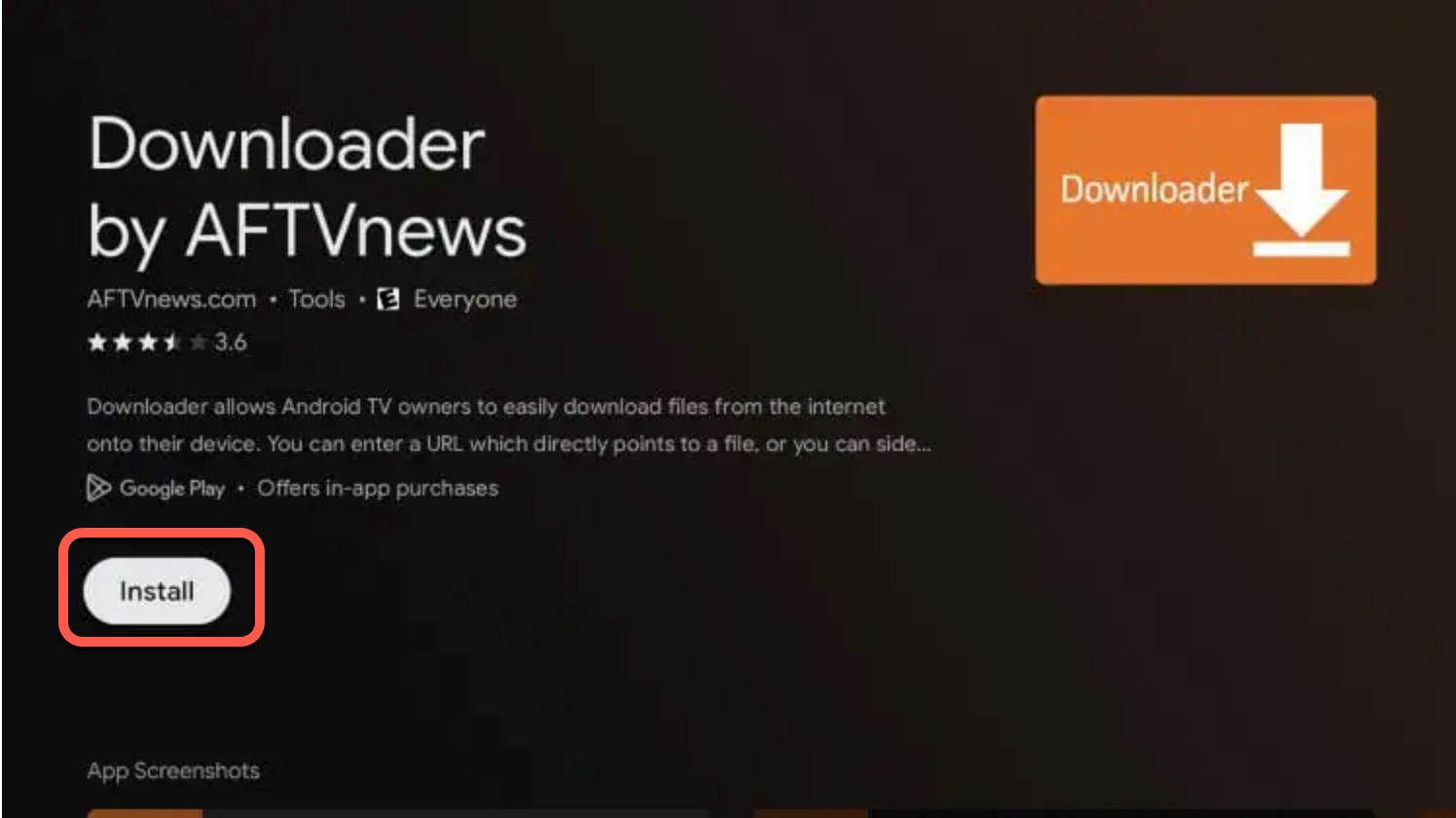
2) From the Apps section search and download / install the Downloader app from the app store.
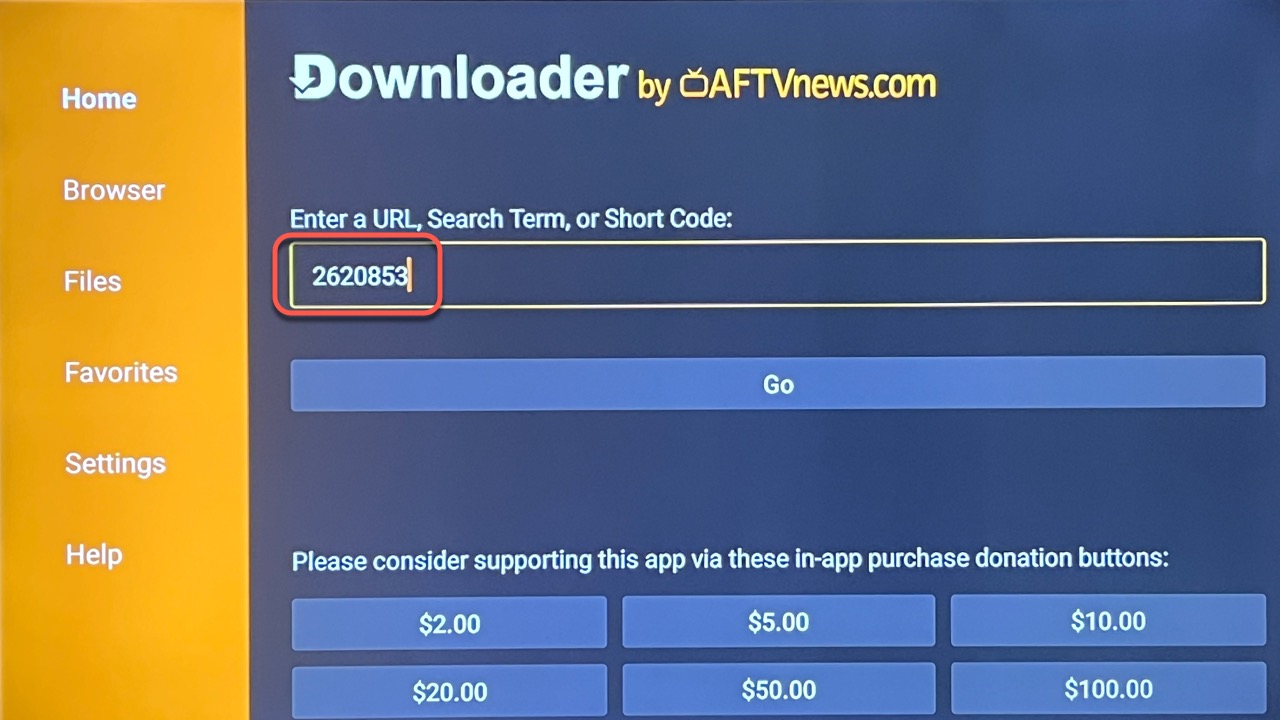
3.) In Downloader, enter the shortcode 2620853 and click Go (this will auto download the app in a few seconds)
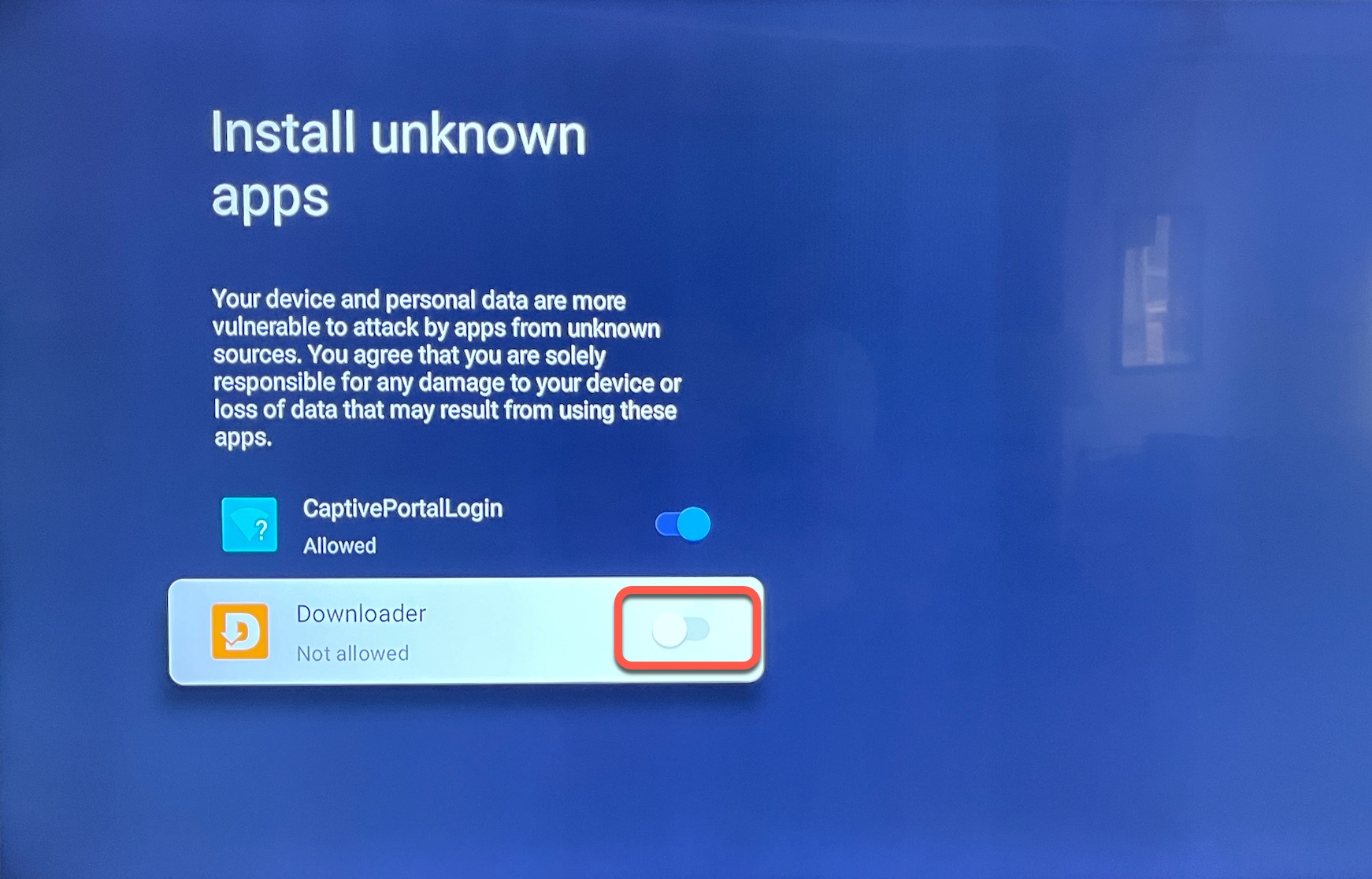
4.) Click on Settings then Toggle On Downloader to allow "installation of unknown apps."
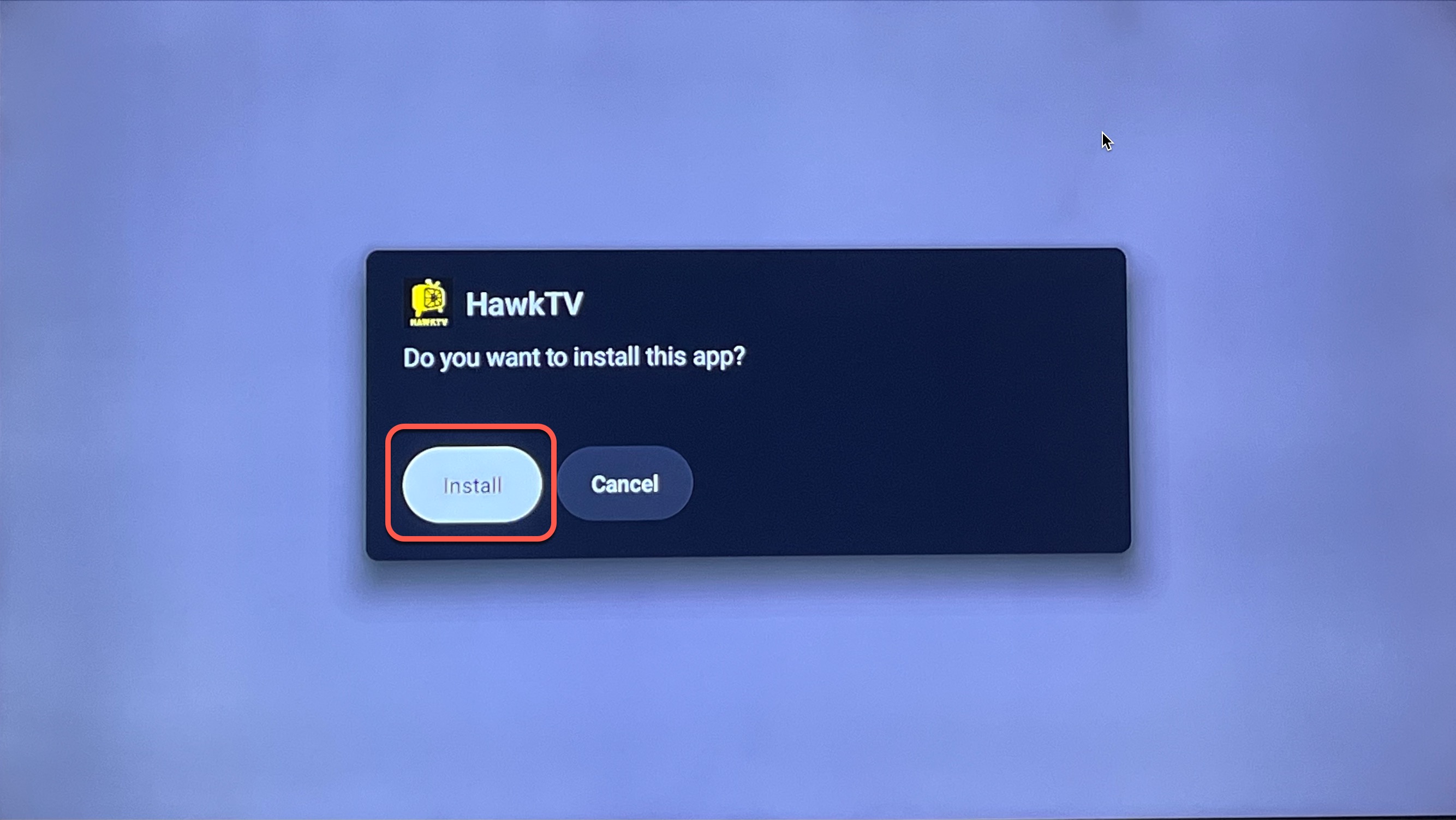
5.) Click Install, this will start the "auto-install" process.
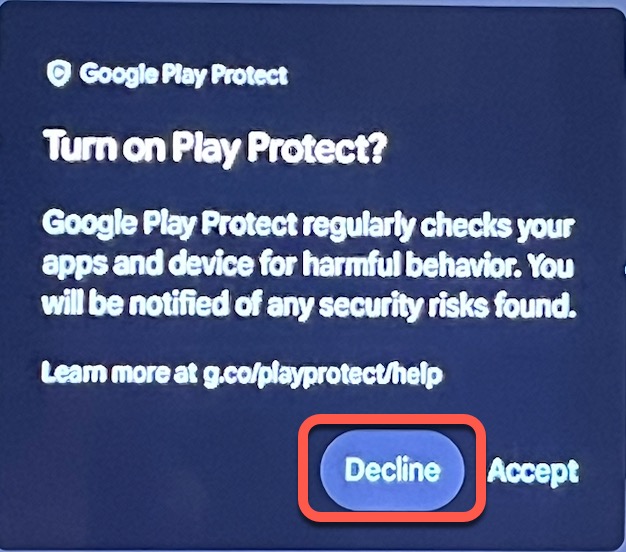
6.) If this message below ever pops up, always click on Decline.
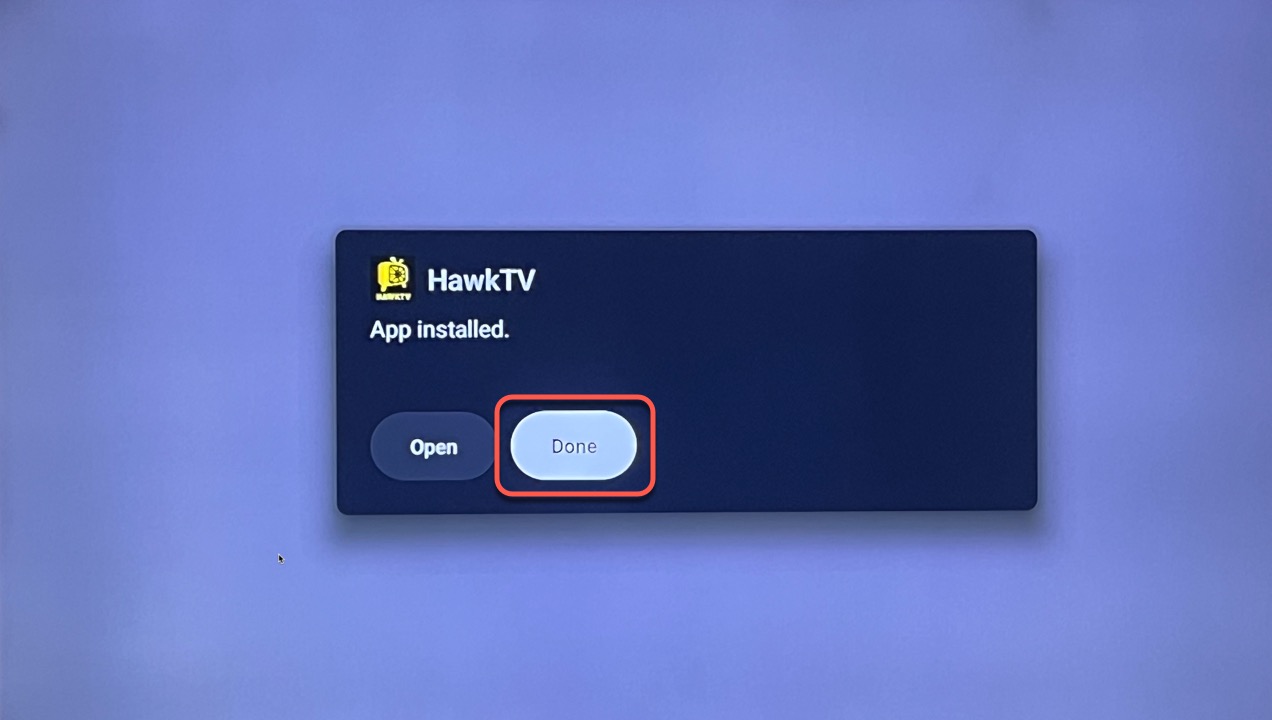
7.) Click Done on the next pop-up, this will lead you back to "Downloader".
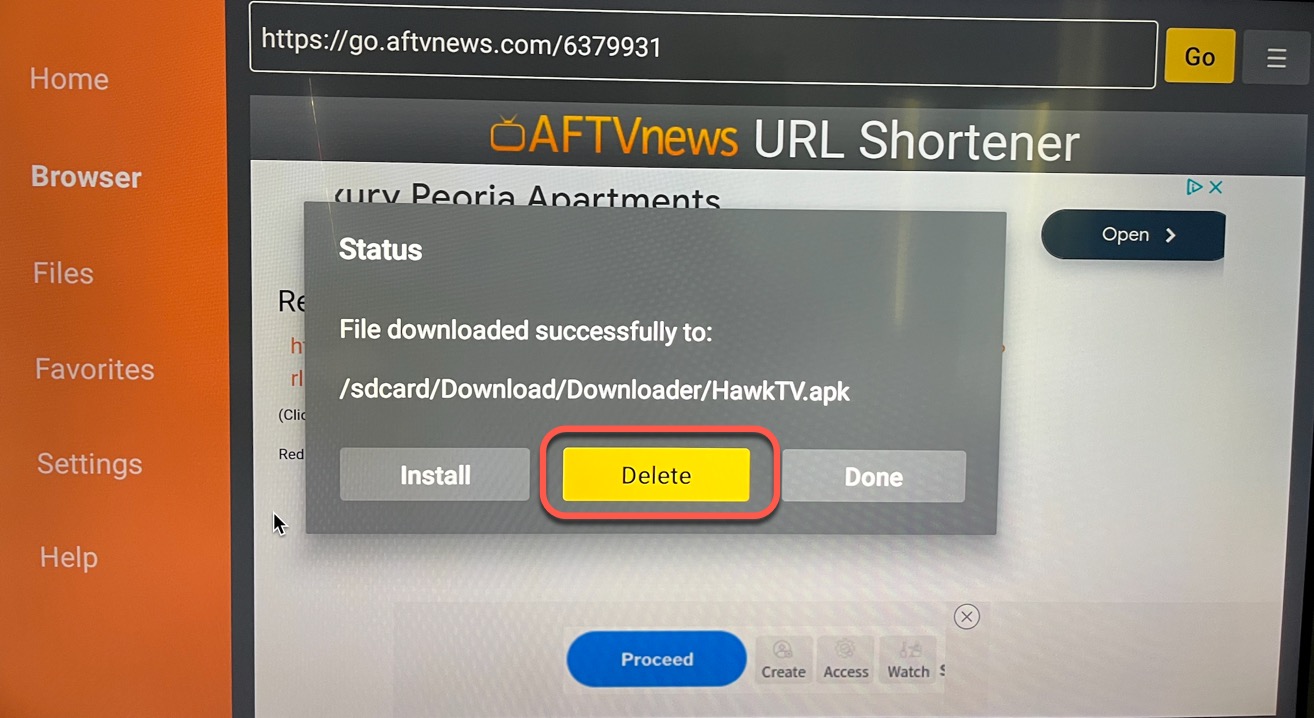
8.) In Downloader, click on Delete, then Delete again to confirm you want to delete the download file. (Do this for every app you install...this will keep space available on your Hard Drive)
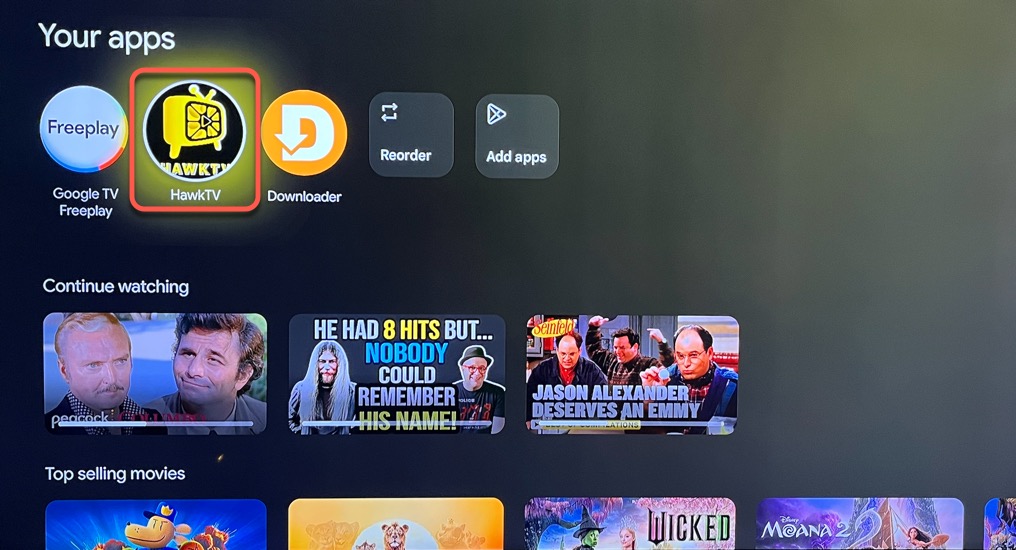
9.) Click the Home button, then in the "Your apps" section click on HAWKTV to open the app.
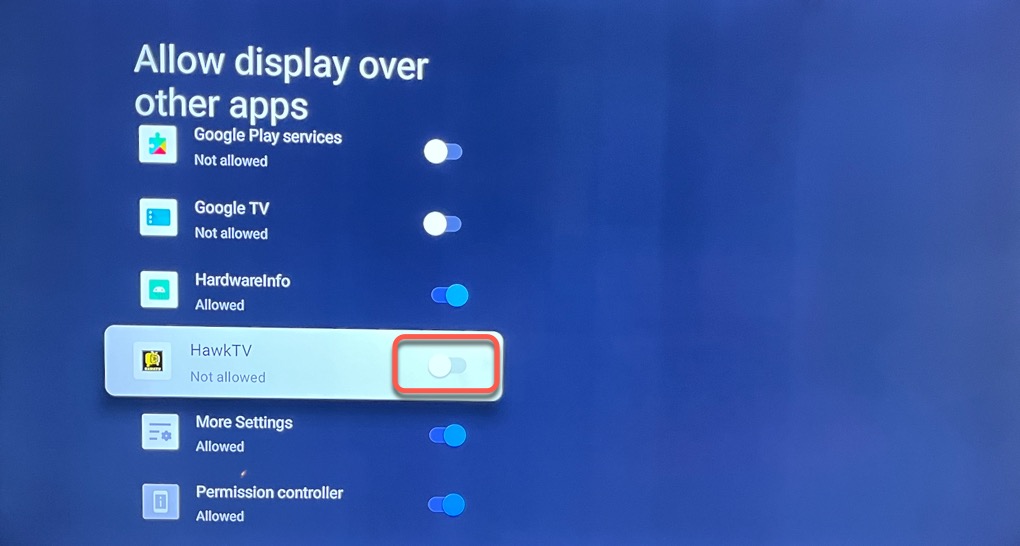
10.) On the next screen click on Settings "to allow Tivimate to display over other apps", then Toggle On HawkTV.
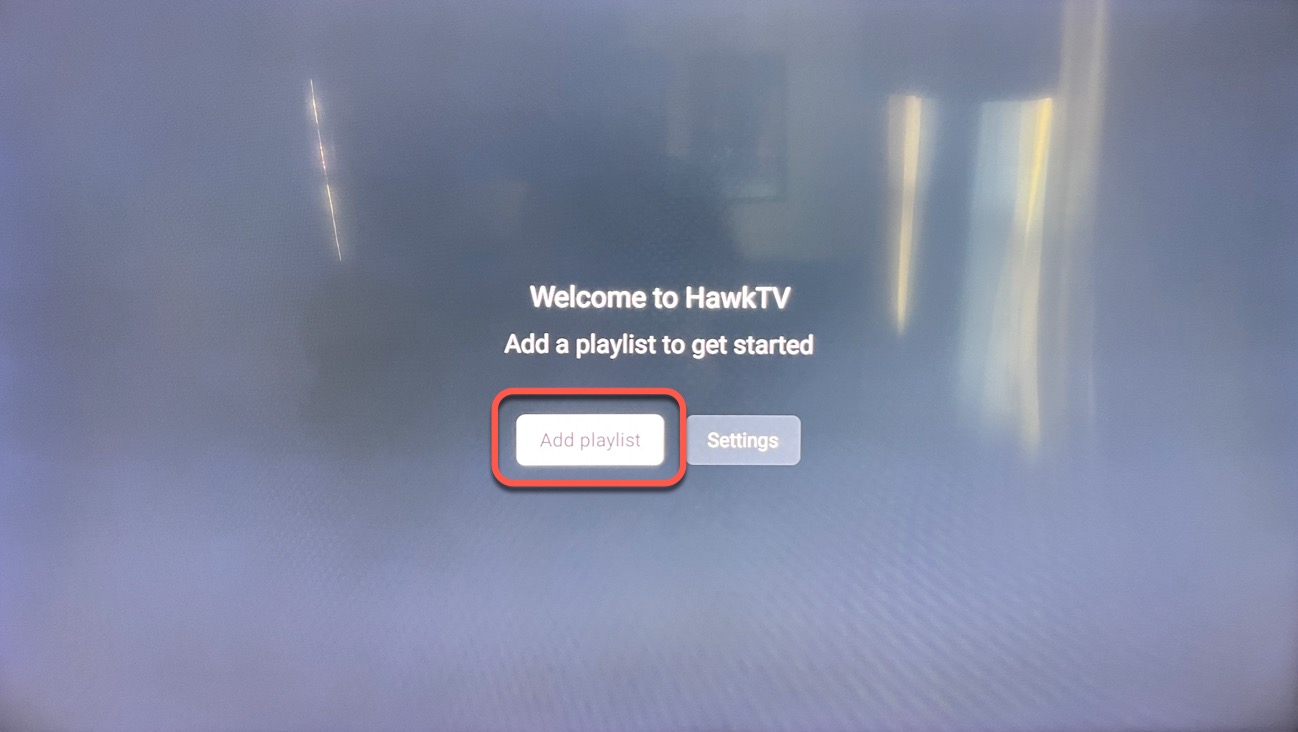
11.) Click on Add playlist, then on the next screen click on HawkTV, then enter your username and password and then click the Next button on the far right. (*Make sure you get the username and password entered EXACTLY. (Use this password helper for I's, l's, O's, 0's, etc. https://www.randm.ca/products/phonetic-passwords/) (HawkTV Login Video Tutorial - https://youtu.be/YxCvPBsQBkY)
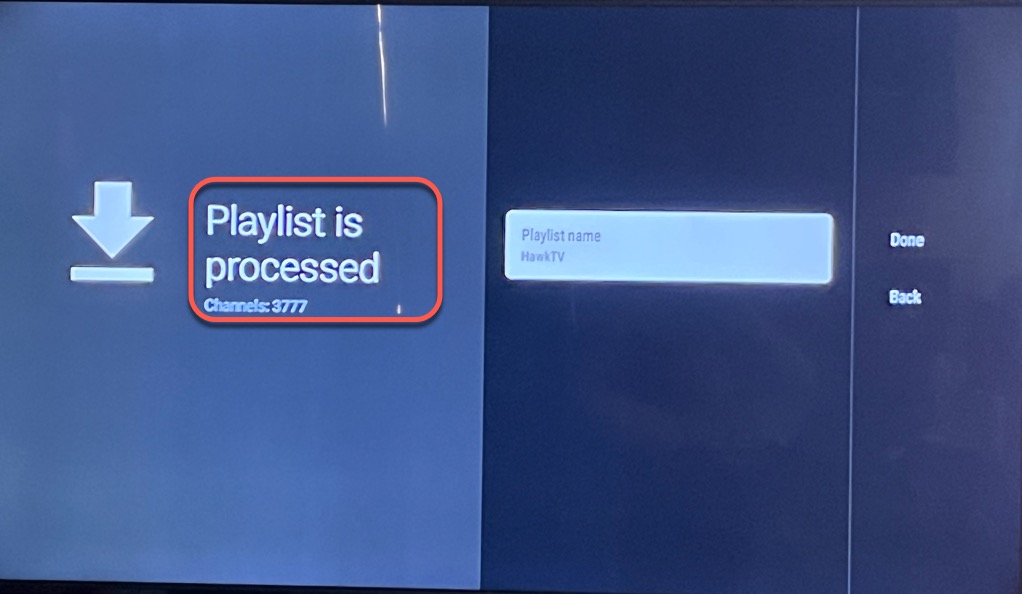
12.) This will start “Processing”, once it’s done you should see a message “Playlist is processed Channels: 3700+”. Click the Done button on the far right of the screen. (if you DO NOT see thousands of Channels processed DO NOT click Done. You have a typo in your username or password so click the back button and correct it first.)
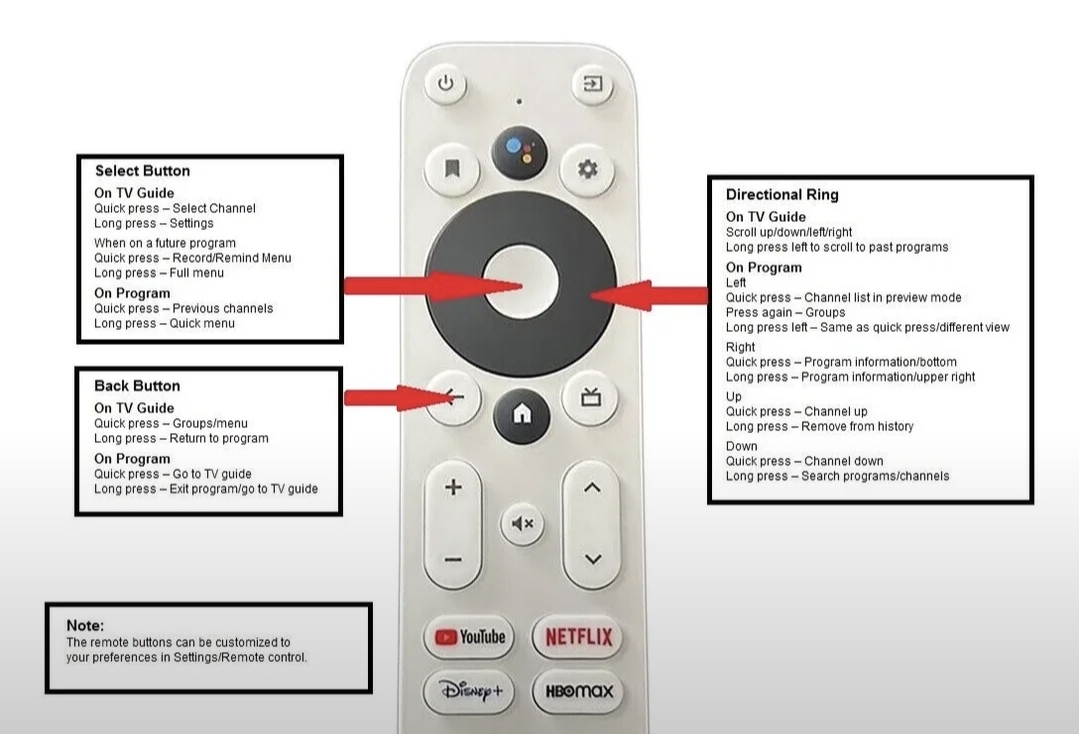
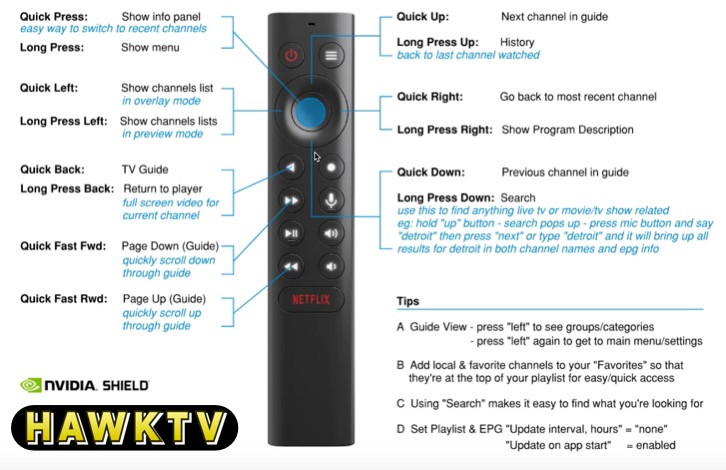
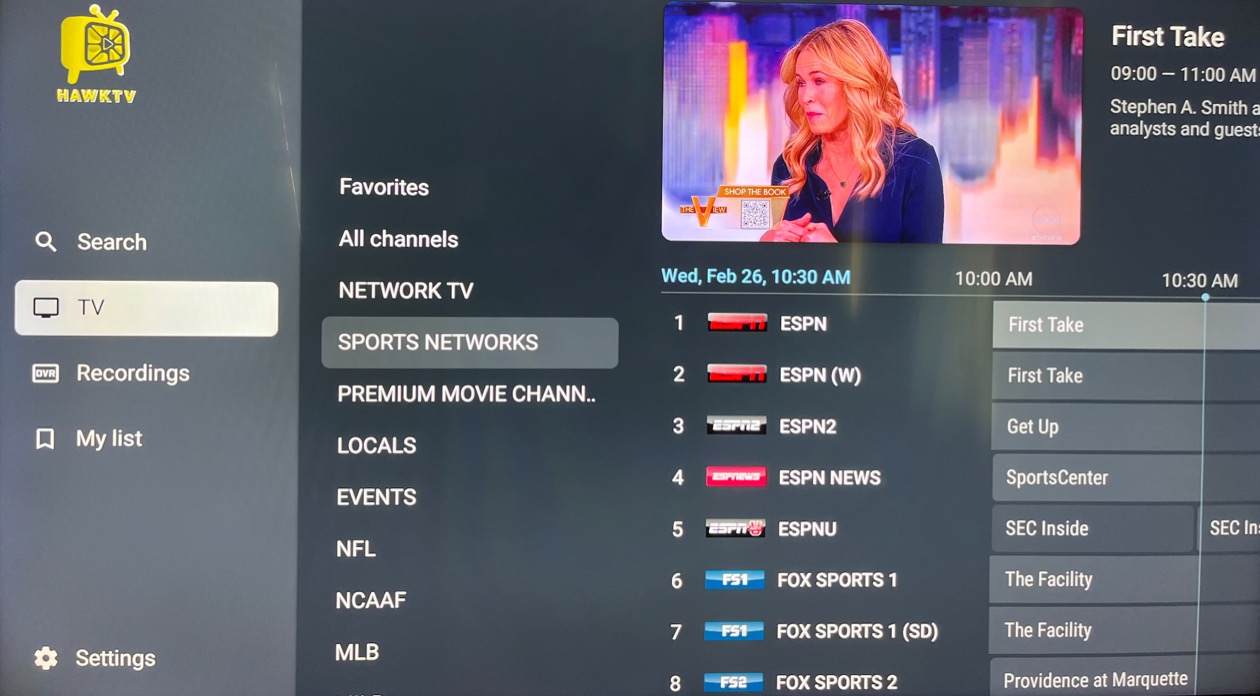
13.) This will lead you into the HawkTV guide. The channel listing guide will update after a few seconds where you’ll be able to see what’s playing on each channel. Click left on your remote to get into the different categories of channels. Long press the "OK" button on any channel to record, favorites, build groups, etc. You can click right on any channel to use as a "Previous Channel / Go Back" functionality.
12) Repeat steps 3-10: In Downloader enter 6327957 for HawkVision & 9610549 for HawkCinema. Follow the onscreen instructions to download and install. Once you have it installed you just have to login using the same username and password as HawkTV. (Reminder - ONLY use the yellow 'Premiumized links in HawkVision)
*NOTE - if you are attempting to record HawkTV you will most likely need additional storage space than what is provided by your streaming device. This is why we have included HawkVision & HawkVOD for movies and tv series.