Install & Login Instructions Per Device (Step-by-Step)
Google / Android Devices
1.) Select your Wi-Fi Network
2.) Log into your Gmail account. (if you don't have a gmail account, you can quickly create one here)
3.) Click "Accept" on the next 2 screens
4.) Google Assistant - This is your preference if you would like this on/off
5.) Choose your subscriptions - if you have other apps you would like to install choose them here, then click "Confirm"
6.) Set up Remote - Click TV - Select Brand, then follow the on-screen instructions to complete your remote setup (volume & power on/off)
7.) Setting up your Google TV (0-100%, this will take a few minutes)
8.) Get the most out of your Google TV (here you can add Multiple Profiles, Offers, Kids Features) or click on "Go to Google TV" at the bottom
9.) On the Home Screen at the very top scroll over to "Apps", then search for "Downloader by AFTVnews" and Install it.
10.) In the Downloader app, type in the short code 49426 or app.clearchoice.one in the url box and hit "Go". (this will start the auto download of the ClearChoice app, this will take a few seconds)
11.) Downloader Pop-up Message: For your security, your phone currently isn't allowed to install unknown apps from this source. You can change this in Settings. Click "Settings"
12.) Install Unknown Apps - Click the toggle button to "Allow" Downloader
13.) ClearChoiceMP - Do you want to install this app? Click "Install" and then "Open"
14.) Enter the Service ID: 804
15.) Enter Your Username and Your Password
16.) Next you'll see it updating 0-100%...this might take a few seconds.
17.) Once it's completed updating, just click on your name and you're in! Enjoy!
Firestick / Amazon Devices
You can watch the Firestick install video here: https://youtu.be/nGJrNvOlqGc?si=vghX6Qo41i95Q4YS
1.) Enable Developer Options in Settings. Go to Settings > My Fire TV or Device & Software > About. Highlight your device name or "Your TV" and click the select button on your remote 7 times until it says "You are now a developer". Go back one screen to access the newly unlocked Developer Options.
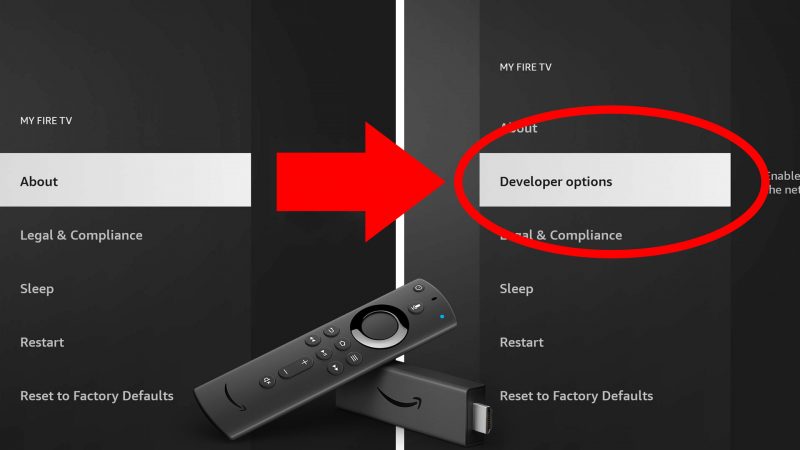
2.) Next, click on "About" and then click on "FireTV Stick 4K" 7 times to enable the Developer Options. (https://youtu.be/T6o9GotVBHg)
3.) Now, hit the back button until you get to the Home screen and then Search for "Downloader by AFTVnews", then Download and Install: https://www.alphr.com/install-downloader-fire-stick/
4.) In the Downloader app, type 49426 or app.clearchoice.one in the url box and then hit "Go". (This will auto-download the ClearChoice app...give it time)
*At this point, Downloader will pop up a message, For your security, your TV is not allowed to install unknown apps from this source. Just follow the on-screen instructions by clicking on "Settings", then "Install unknown apps", finally click on "Downloader" and turn it to ON. Then just click the back button until your back on the Downloader screen and click on "Install".
5.) On the Home Screen, navigate to "Your Apps & Channels"
6.) Now open your ClearChoice app!
7.) Enter the Service ID: 804
8.) Enter Your Username and Your Password
9.) Next you'll see it updating 0-100%...this might take a few seconds.
10.) Once it's completed updating, just click on your name and you're in! Enjoy!
Roku (Not recommended)
1.) Search the Roku store for "ClearChoice MP", then download and install the app
2.) Open the ClearChoice app
3.) Enter Your Username and Your Password
*if you experience issues with the Roku ClearChoice app, we suggest getting an android or firetv device.