
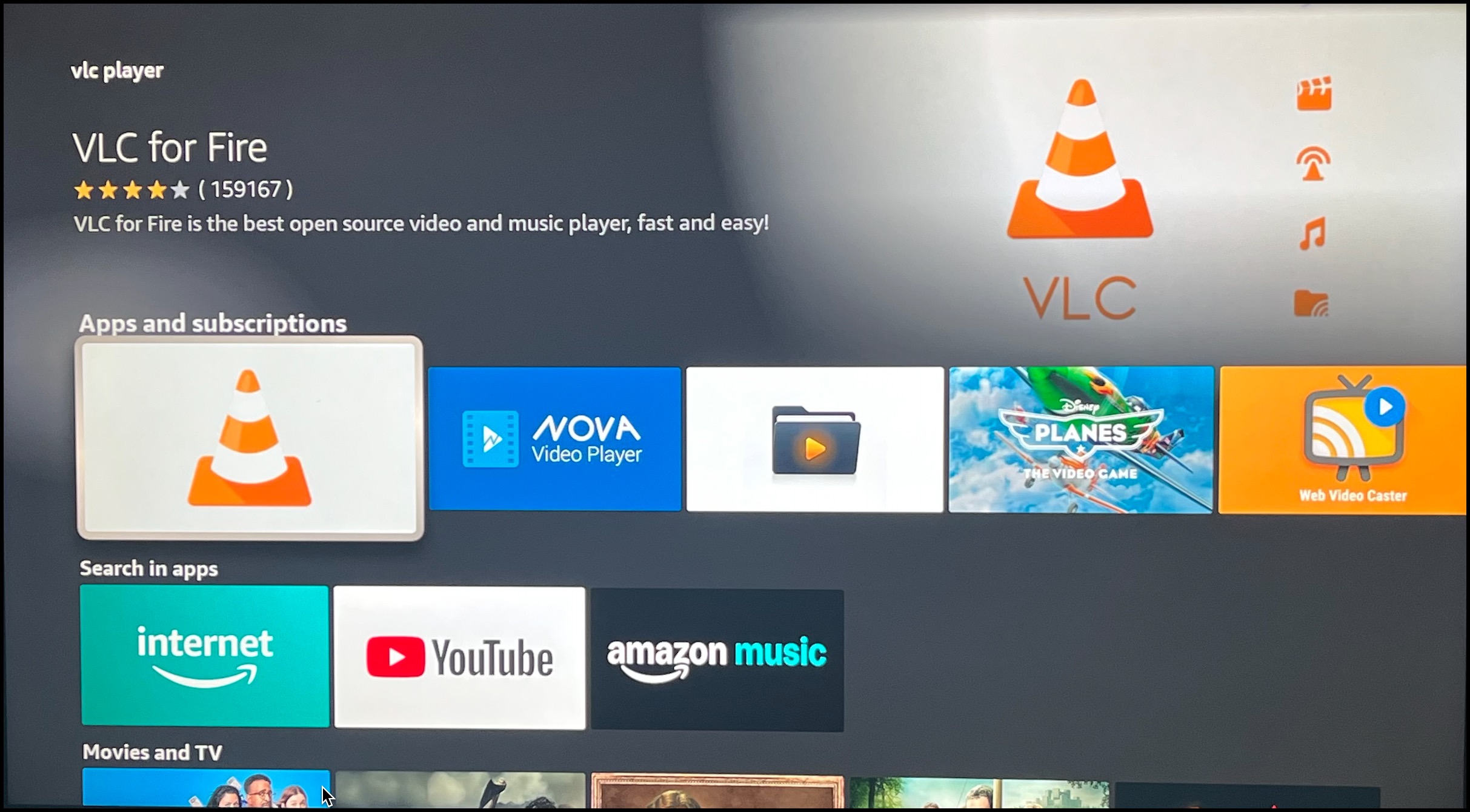
On your device go to the search menu and type in "VLC", then download and install.
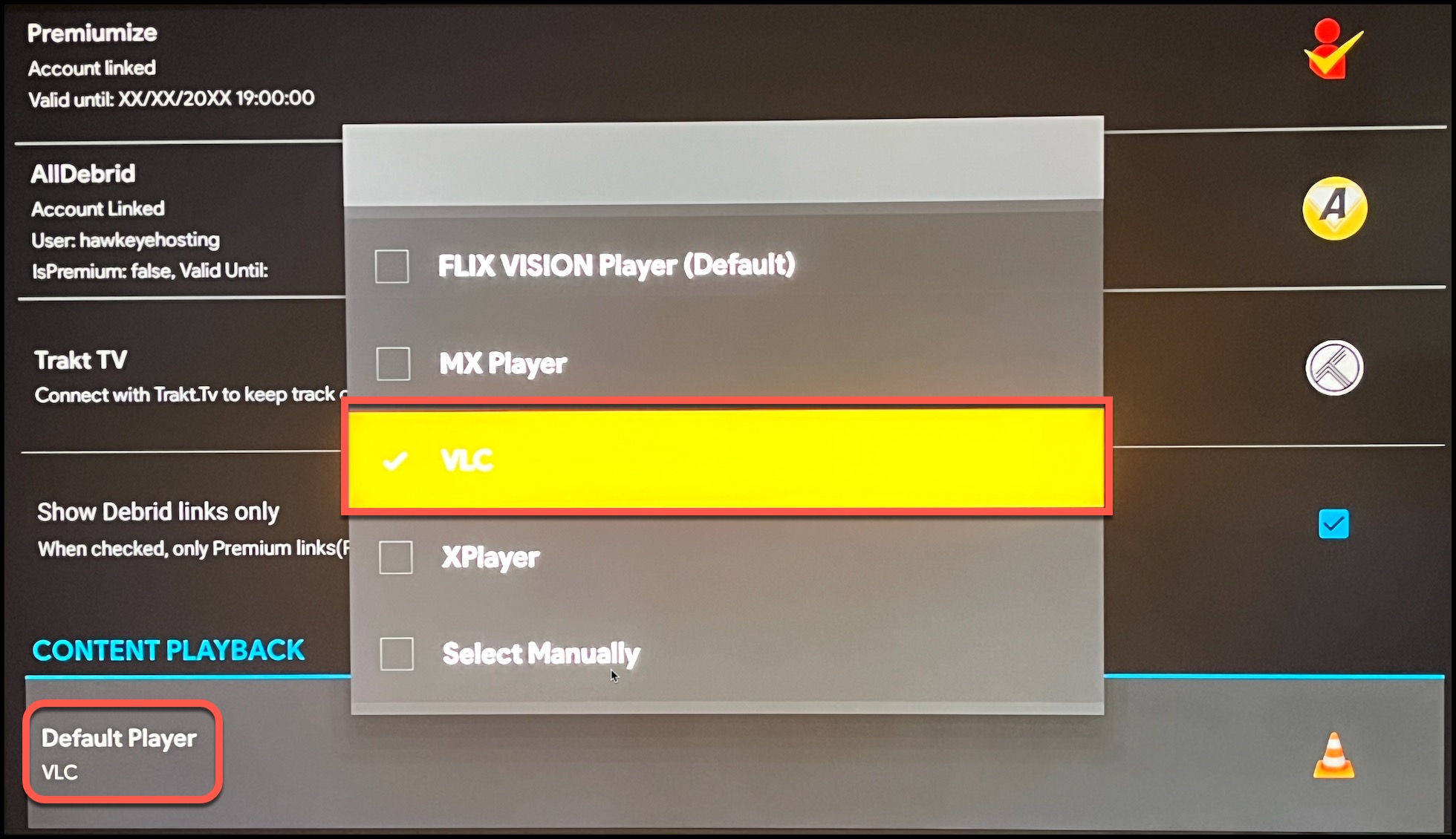
In HawkVision, navigate to Settings and scroll down to the Content Playback section. Then click on "Default Player", and select VLC as your default player.
Disclaimer: These apps are provided FREE of charge as optional bonus apps available to HawkTV subscribers. Access to these bonus apps is available only while an active subscription is maintained and will end if the subscription is canceled or terminated. The sources and links displayed are obtained from third-party services and are not hosted, controlled, or maintained by us. We do not guarantee the availability, accuracy, or functionality of any links or the content they may lead to. By accessing or using these apps and links, you acknowledge that we are not responsible or liable for any content, availability issues, or damages that may result from their use. All use is at your own discretion and risk.