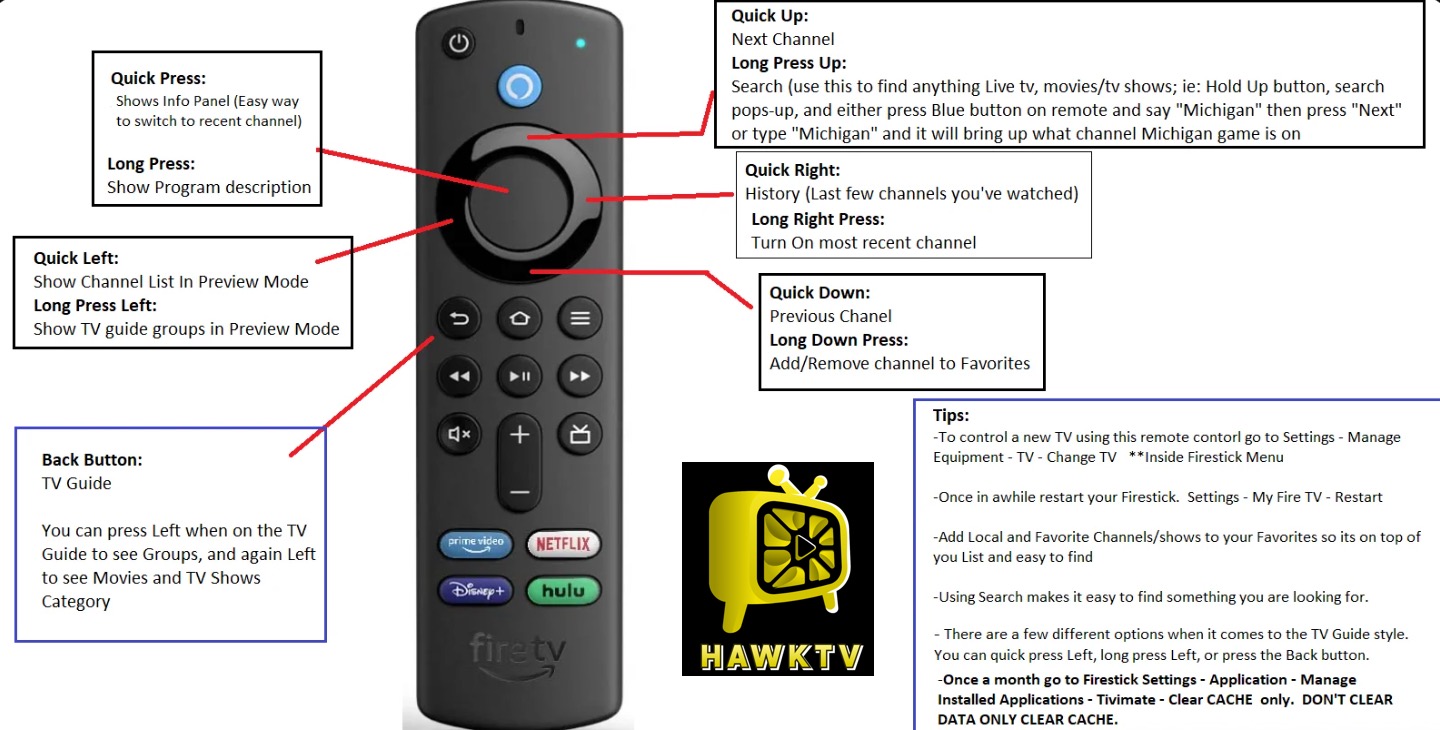
Firestick HawkSuite Install Instructions (via Downloader by AFTVNews)
Downloader Install Short codes:
- HawkTV: 2620853 (LiveTV App)
- HawkVision: 4658708 (Movies / TV Series App - *ONLY use the yellow 'Premiumized' links)
- HawkCinema: 9610549 (Movies / TV Series App - *ONLY click on "Watch", DO NOT click on "Download")
Amazon (Firestick Devices) HawkSuite Install Download & Install Instructions:
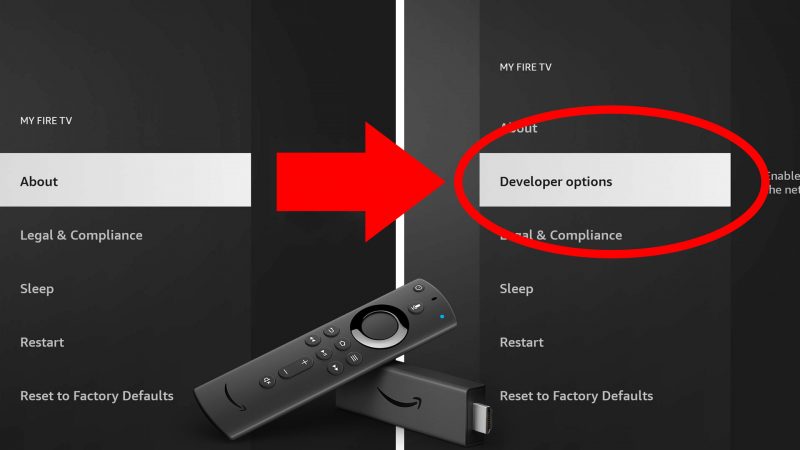
1.) Enable Developer Options in Settings. Go to Settings > My Fire TV or Device & Software > About. Highlight your device name or "Your TV" and click the select button on your remote 7 times until it says "You are now a developer". Go back one screen to access the newly unlocked Developer Options.
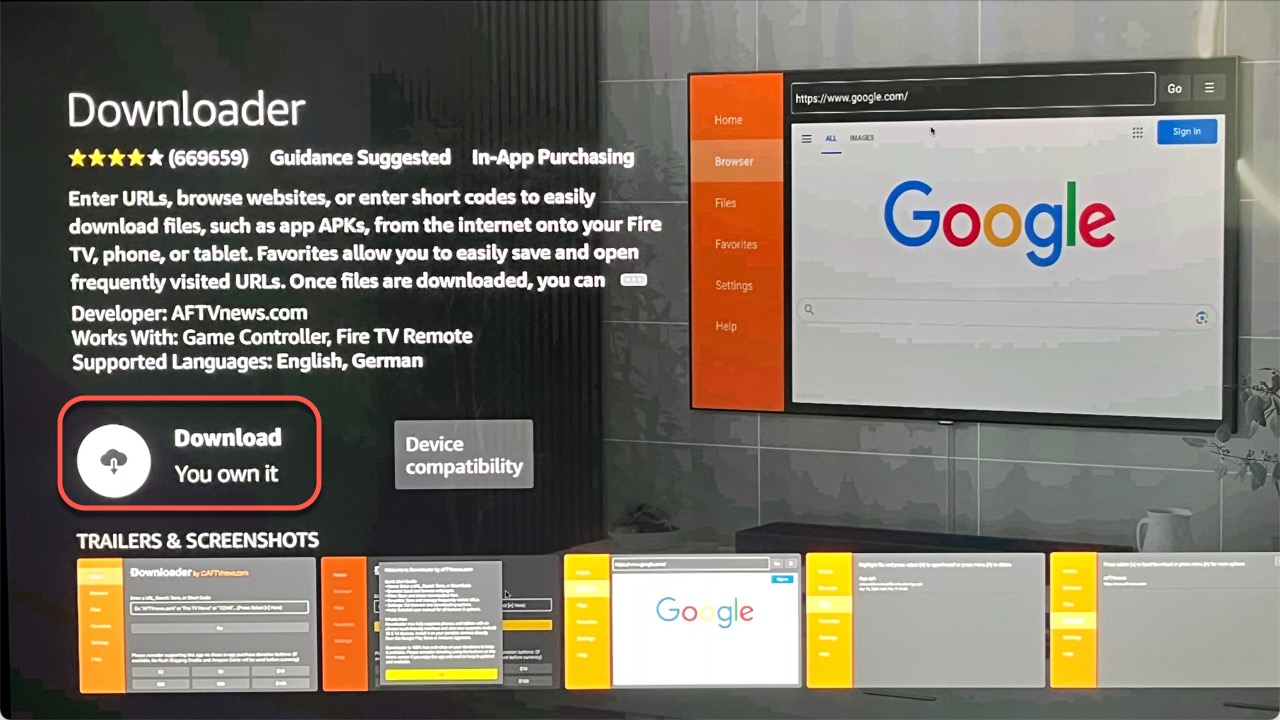
2.) Download and Install Downloader from the app store.
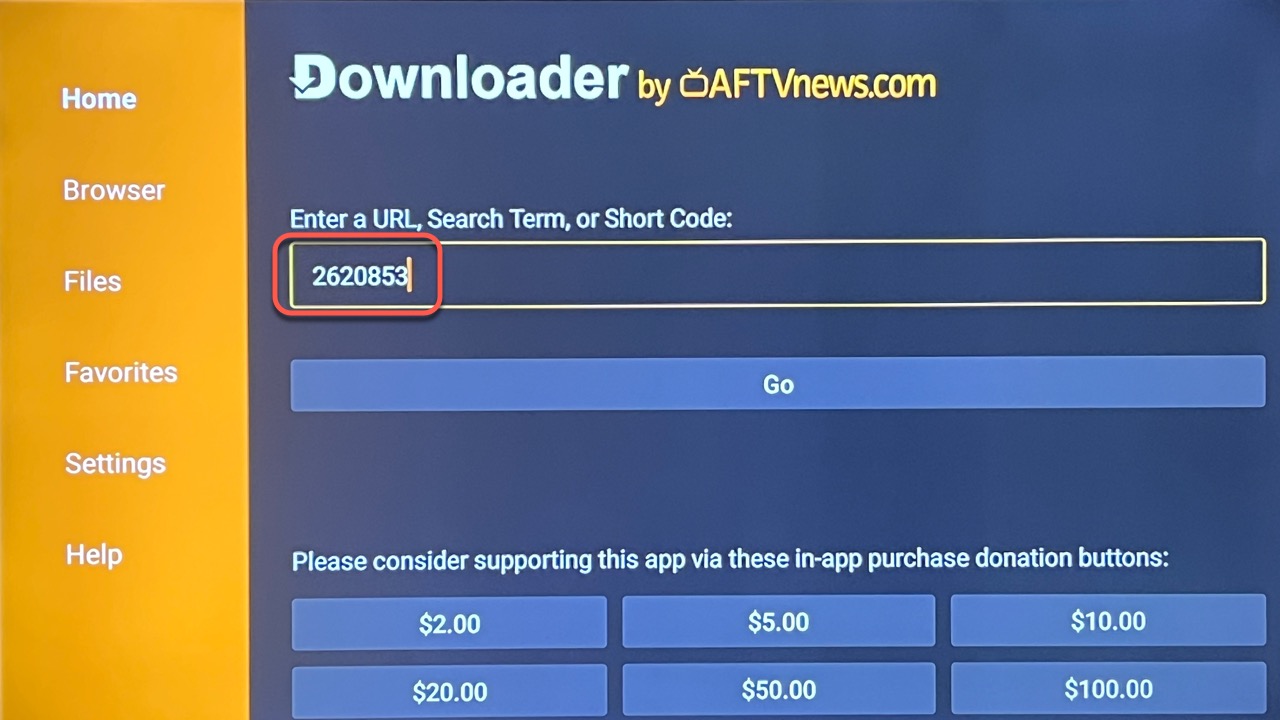
3.) In Downloader, enter the shortcode 2620853 and click Go. (This will start auto-download process and will take a few seconds to complete)
4.) Click Install on the next screen. (The install process will take a few minutes, just be patient and let the installation process finish).
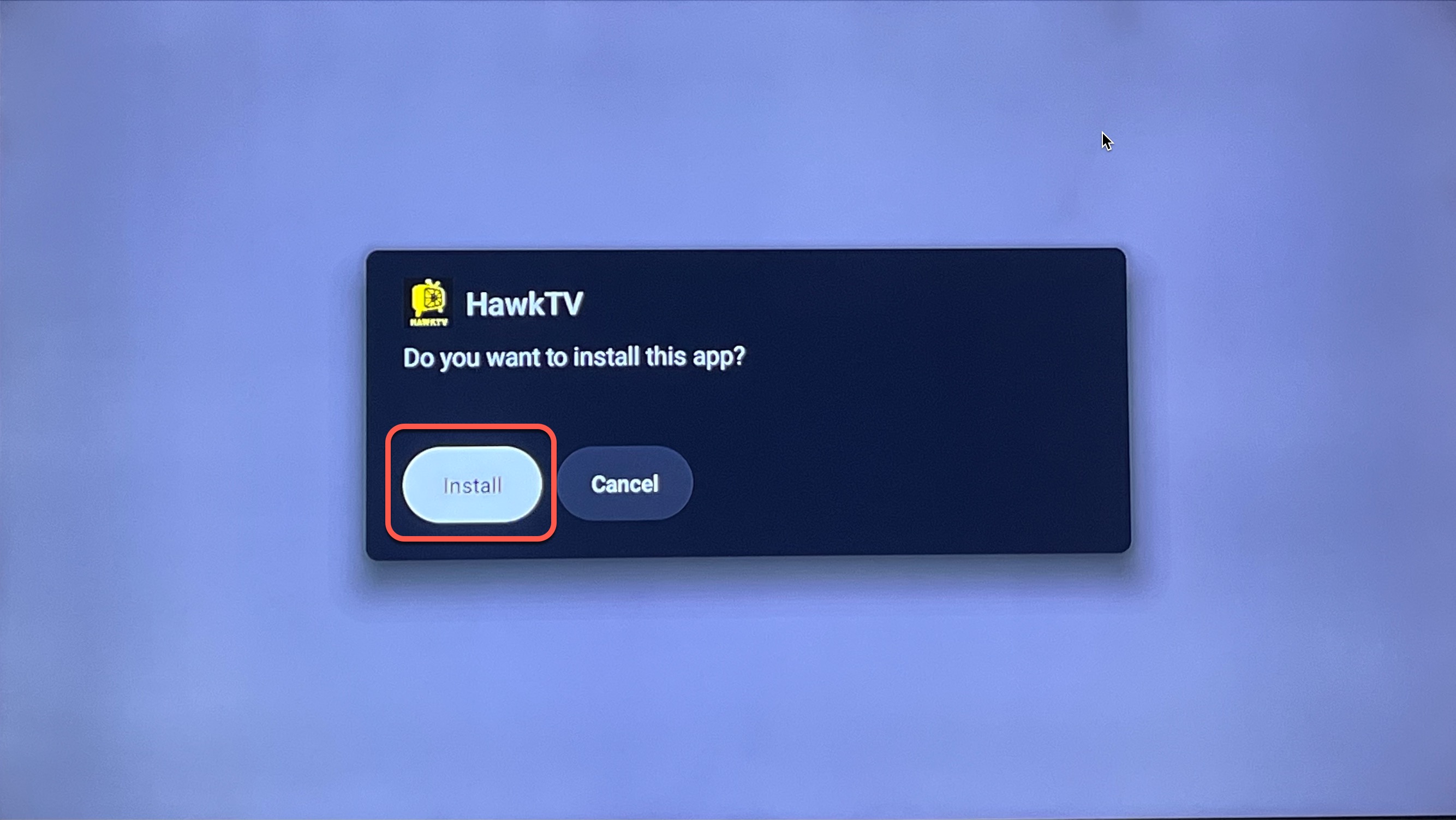
5.) Click Done on the next screen, this will lead you back to the Downloader app. Click on Delete on this screen and then Delete again to confirm you want to delete the download file. (Do this for every app you install...this will keep space available on your Hard Drive)
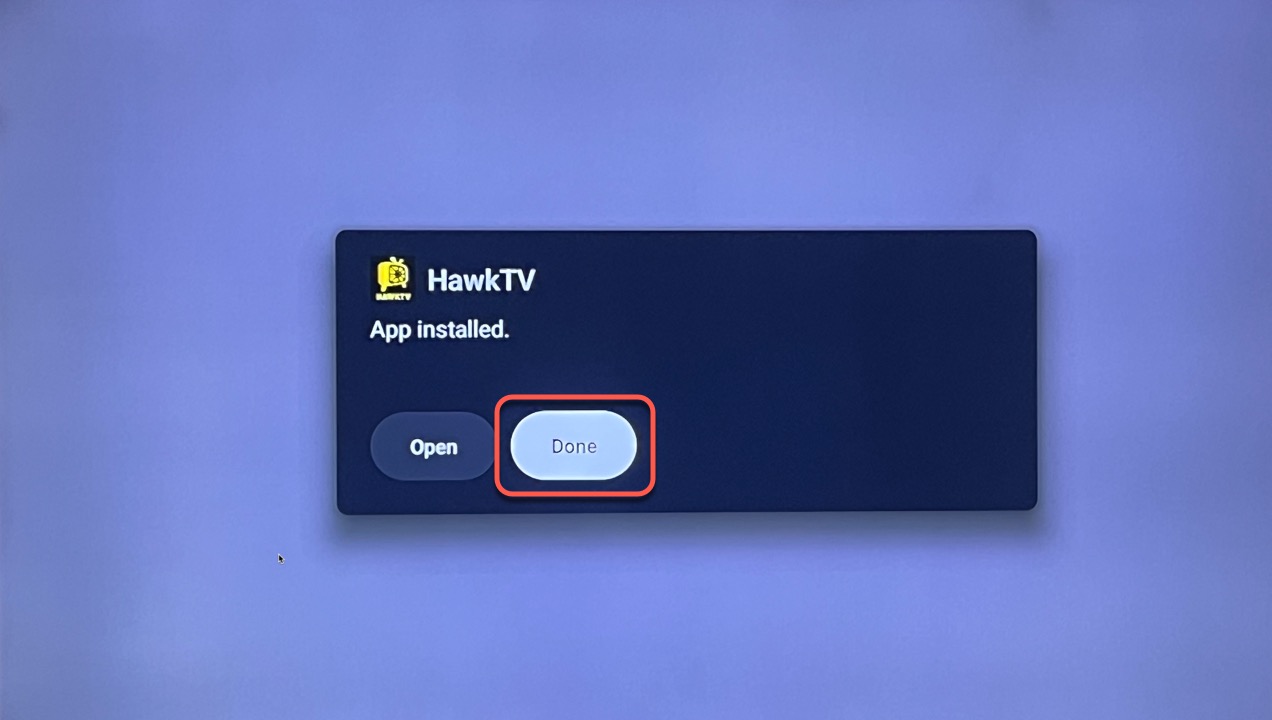
6.) Click the Home button, then click on the Apps button with the 3 squares / plus icon. (it’s the icon just left of the Settings wheel)
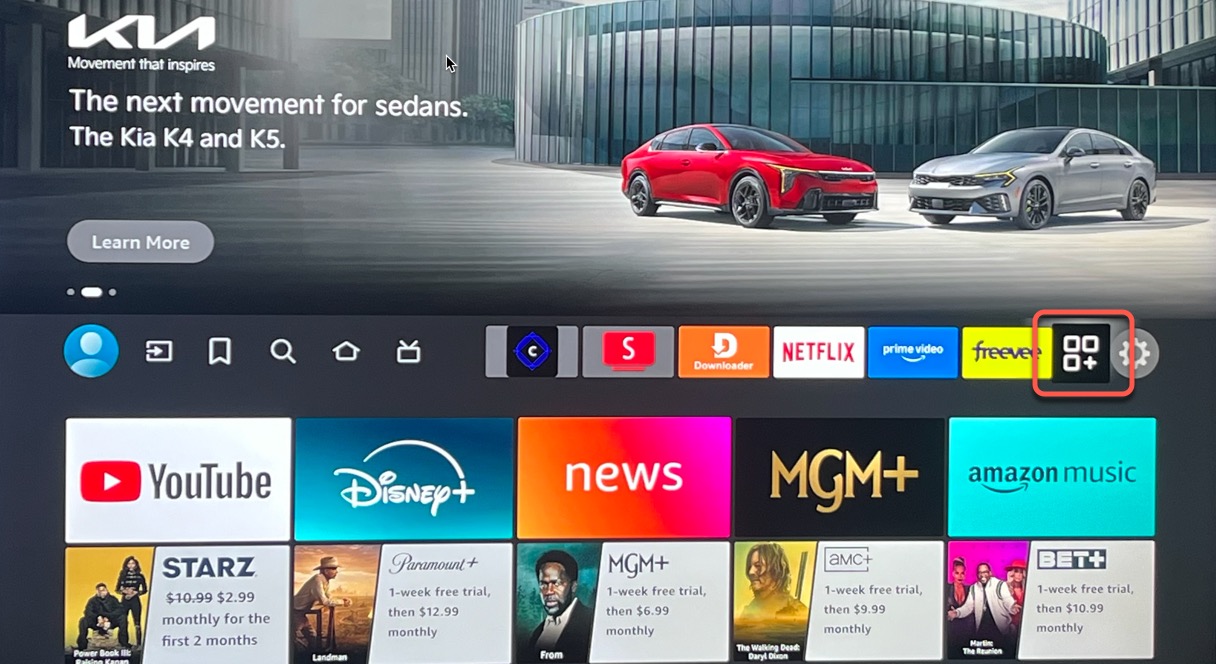
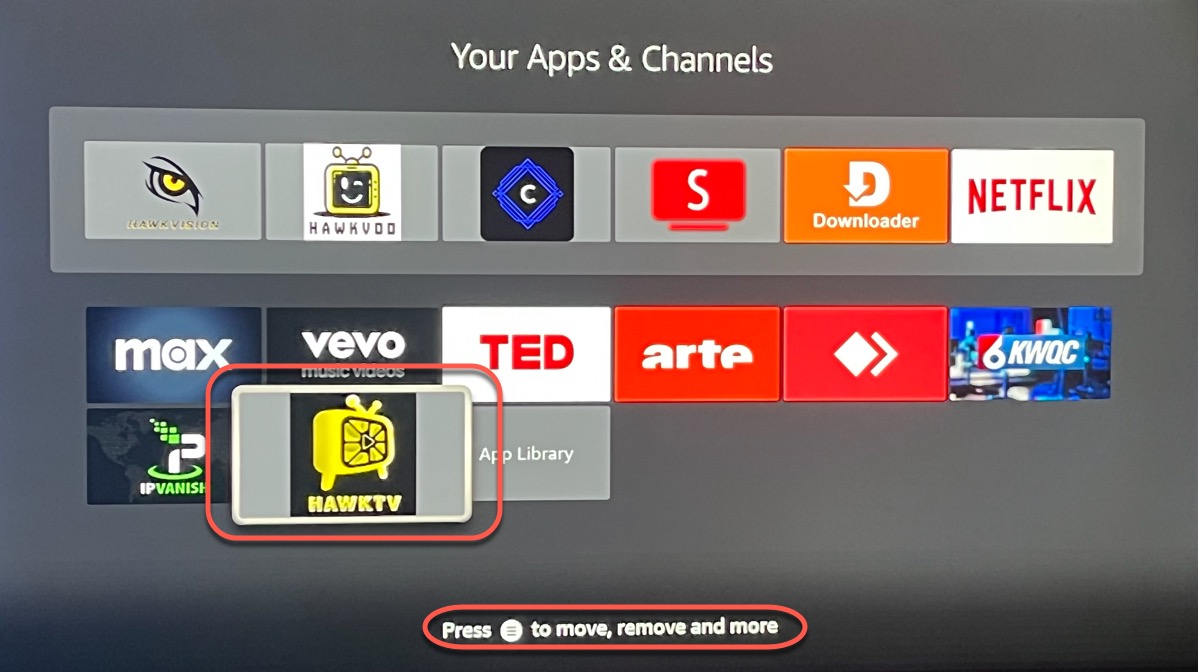
7.) Navigate down the page until you find the HAWKTV icon and click on it to open the app. (You can also hit the 3 lines button on your remote to move the app up into your "favorites")
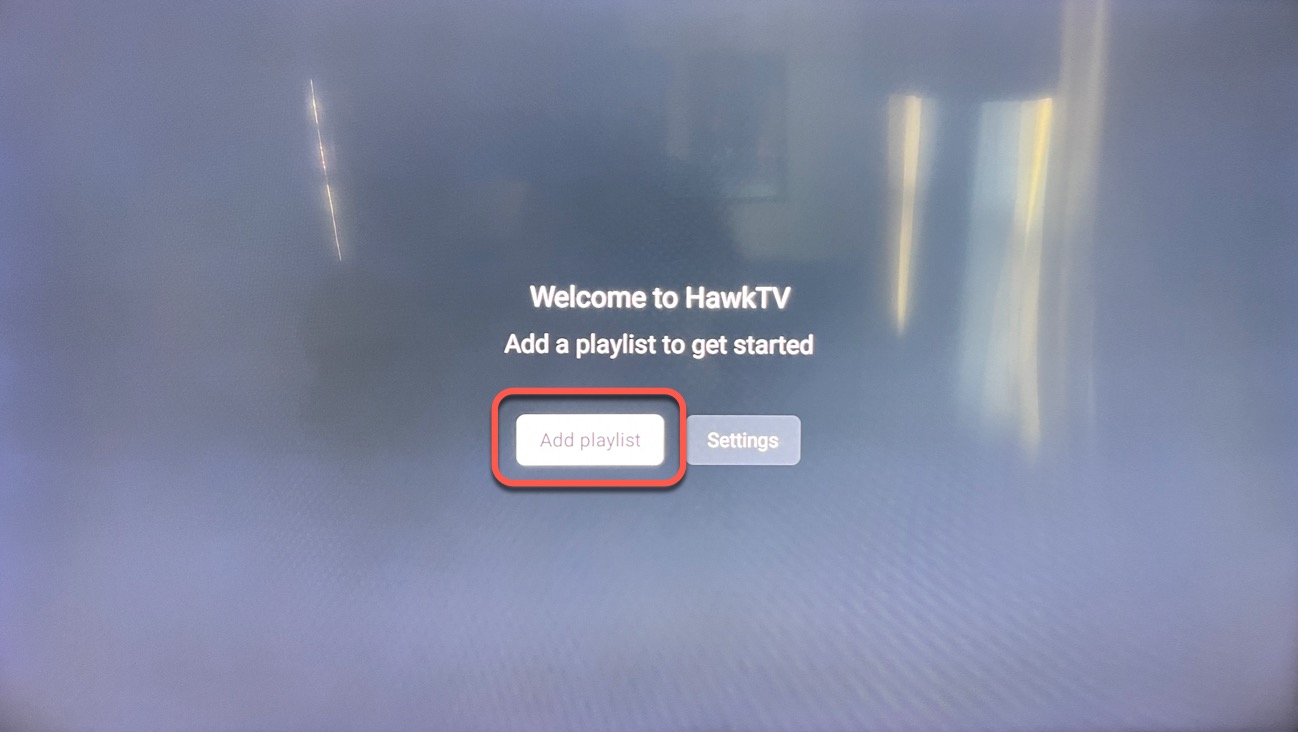
8.) Click on Add playlist, then on the next screen click on HawkTV, from your phone Scan the QR code next to the keyboard and use the remote functionality and copy & paste your username and password from this email into the appropriate screens. (See Screenshot below) Then click the Next button on the far right. (*99% of login issues have to do with a typo in either the username or password. Use the QR code functionality to make it easier on yourself. If you prefer to enter manually make sure to use the "Username & Password Helpers" and enter every character exact.)
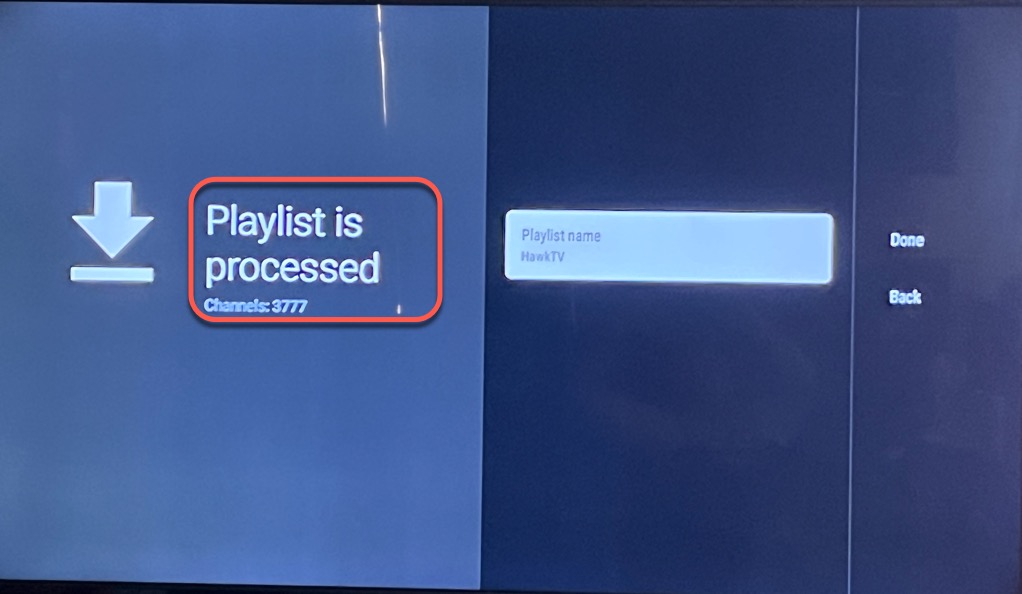
9.) This will start “Processing”, once it’s done you should see a message “Playlist is processed Channels: 3700+”. Click the Done button on the far right of the screen. (if you DO NOT see thousands of Channels processed DO NOT click Done. You have a typo in your username or password so click the back button and correct it first.)
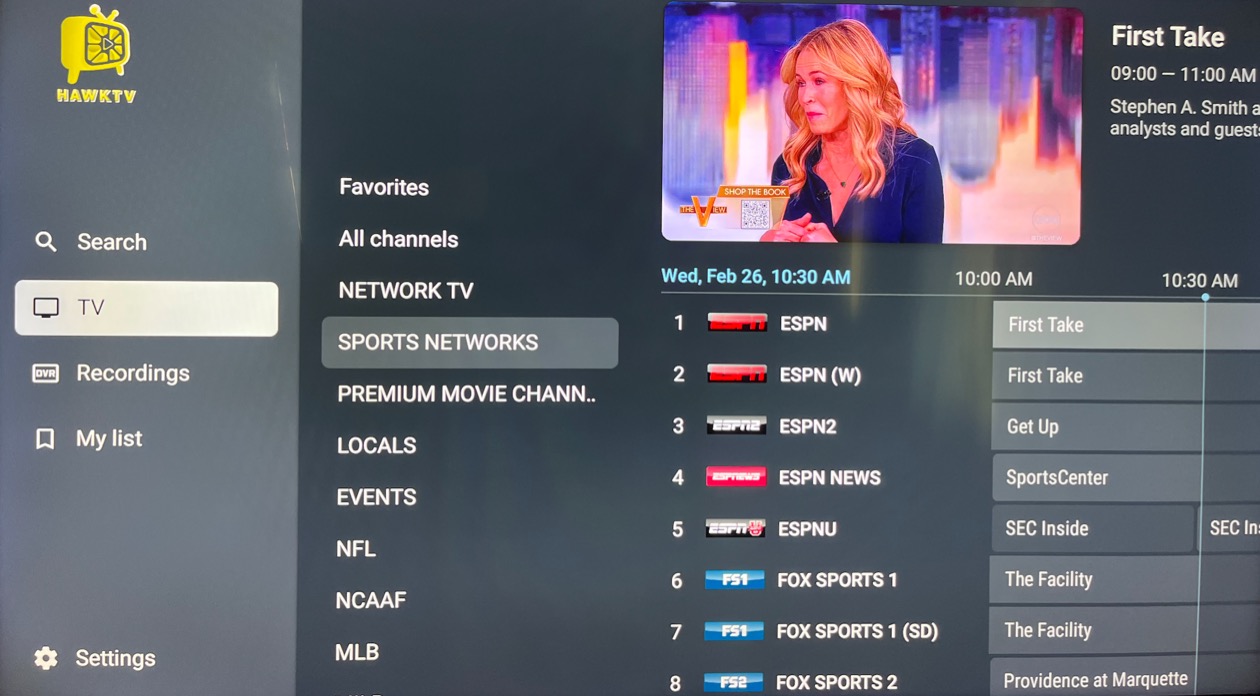
10.) This will lead you into the HawkTV guide. The channel listing guide will update after a few seconds where you’ll be able to see what’s playing on each channel. Click left on your remote to get into the different categories of channels. Long press the "OK" button on any channel to record, favorites, build groups, etc. You can click right on any channel to use as a "Previous Channel / Go Back" functionality.
11.) Repeat step 3-7 to install the VOD apps: In Downloader enter 9549988 for HawkVision (ONLY use the yellow Premiumized links, 9610549 for HawkCinema (ONLY stream the links, DO NOT CLICK on DOWNLOAD EVER). Follow the onscreen instructions to download and install. Once you have it installed you just have to login using the same username and password as HawkTV.
Disclaimer: These apps are provided FREE of charge as optional bonus apps available to subscribers. Access to these bonus apps is available only while an active subscription is maintained and will end if the subscription is canceled or terminated. The sources and links displayed are obtained from third-party services and are not hosted, controlled, or maintained by us. We do not guarantee the availability, accuracy, or functionality of any links or the content they may lead to. By accessing or using these apps and links, you acknowledge that we are not responsible or liable for any content, availability issues, or damages that may result from their use. All use is at your own discretion.
*NOTE - if you are attempting to record HawkTV you will most likely need at least a 16GB or 32GB streaming device because recordings are stored on the device. This is why we have included the FREE OPTIONAL HawkVision & HawkCinema apps for movies and tv series.