
HawkTV - How to enable closing captioning

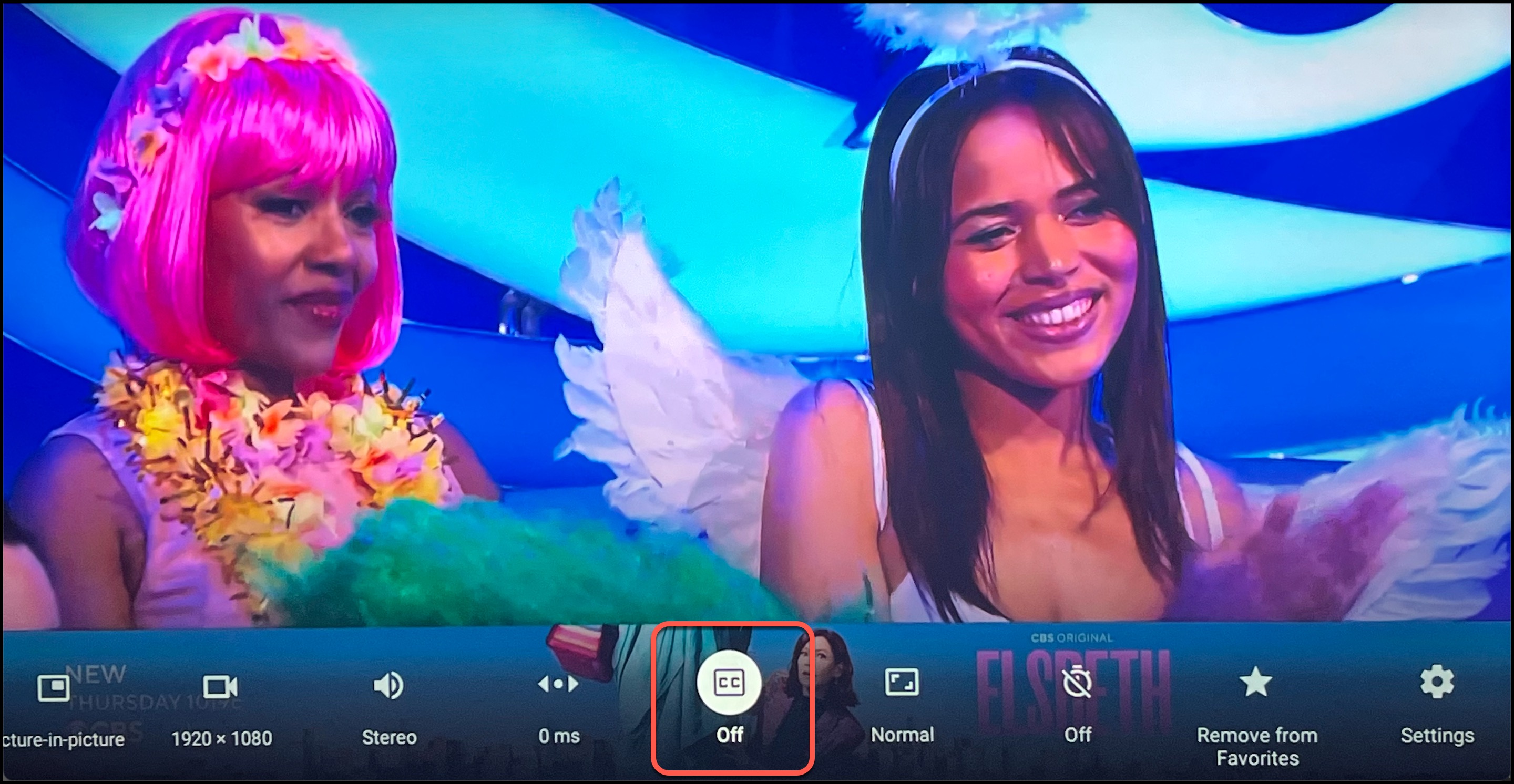
On any channel, hold down the 'OK' center button on your remote. A list of menu items will appear, scroll over and click on the icon with "CC" (Closed Captioning) in it.
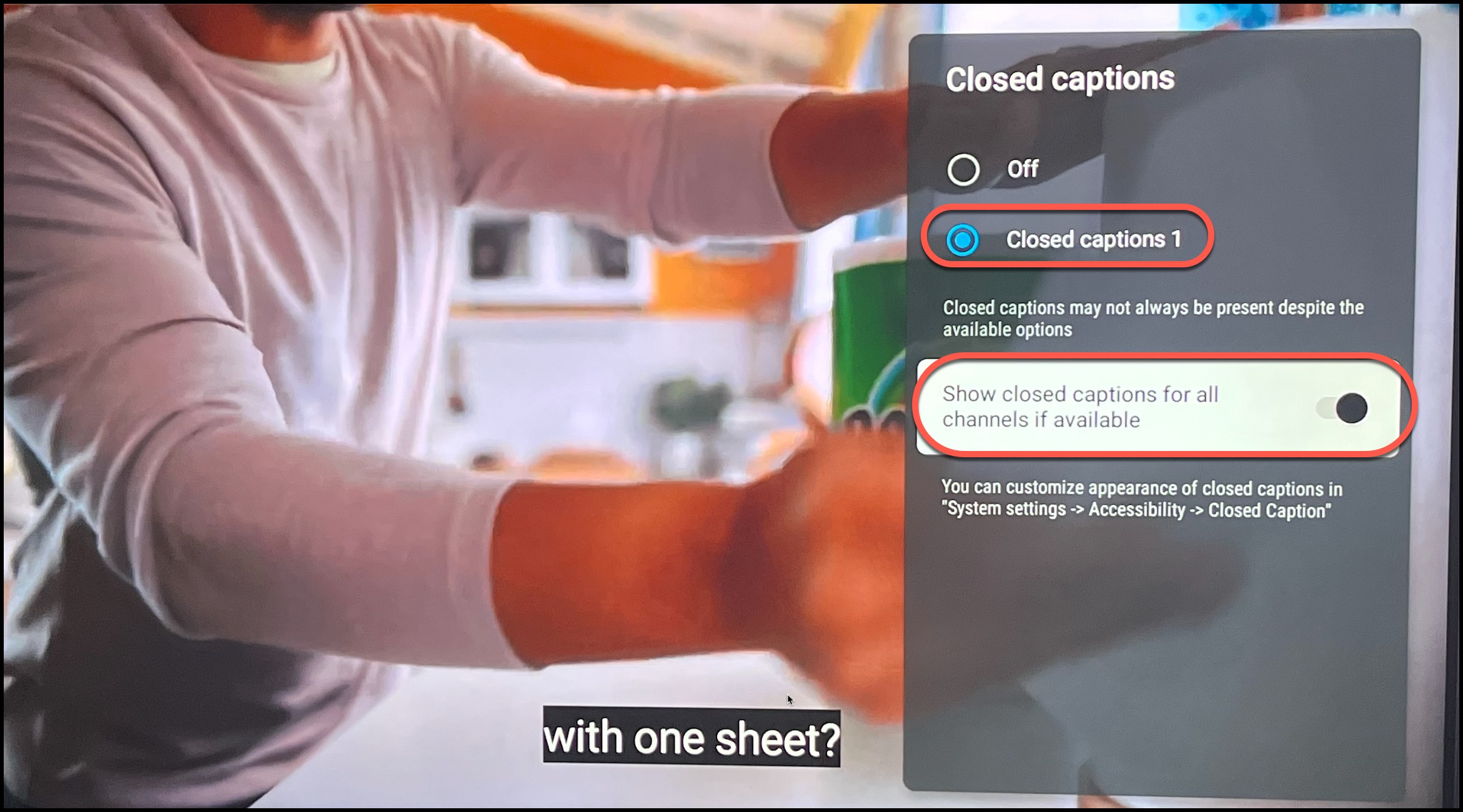
Next, toggle on the button next to "Closed captions 1", and then toggle on "Show closed captions for all channels if available". 
  • 31 کاربر این را مفید یافتند
آیا این پاسخ به شما کمک کرد؟

مقالات مربوطه

HawkTV - Phones / Tablets - Adding the HawkTV Playlist to the Smarters app

Search for the 'Smarters Player Lite' app from the Google Play or Apple App store and install it...

HawkTV - WebPlayer Browser Link for Desktops, Laptops, etc.

WebPlayer Browser App for Laptops, Desktops, etc. (HawkTV Playlist) (*NOTE - this will use a...

HawkTV - How to create custom groups

1) From the TV guide, long-press the OK button on your remote.   2) A menu will pop out on the...

HawkTV - How to add favorites

Adding channels to the Favorites group. From the Guide click on the channel you want to add,...